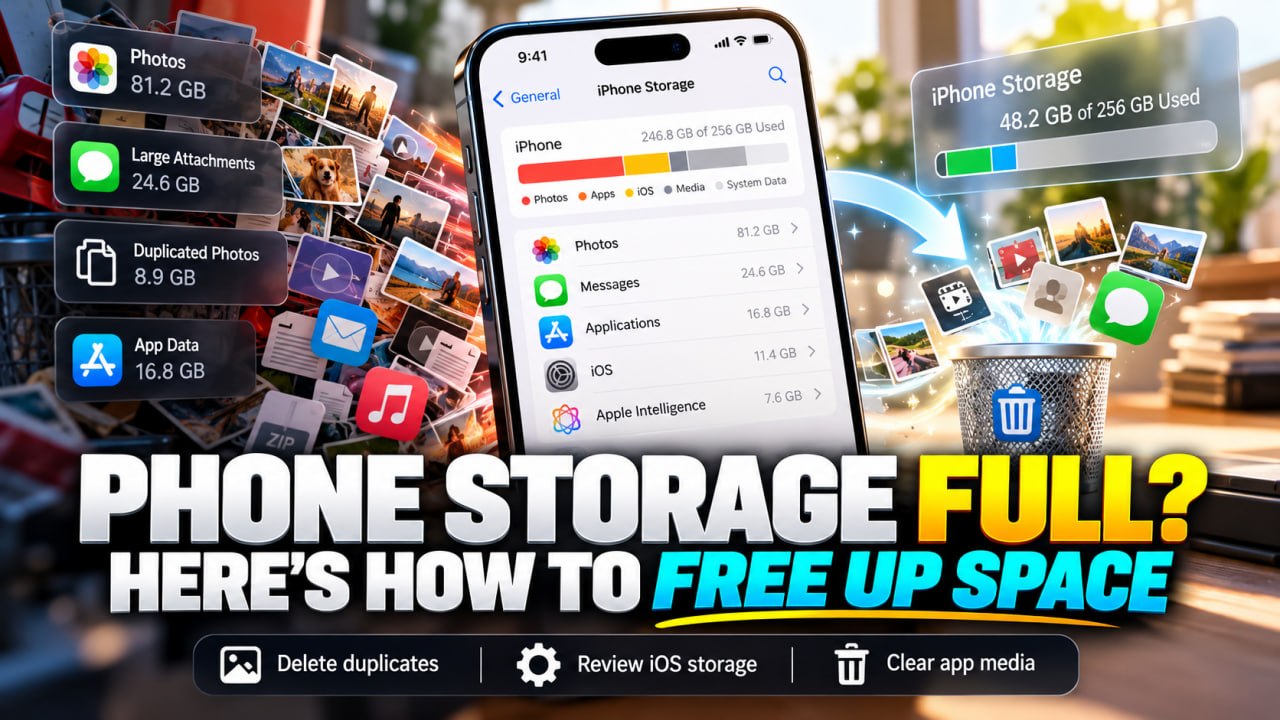
Yooo, before you delete another picture, uninstall your favorite app, or start paying for more storage, check what your iPhone is holding onto.
I went digging through the settings on my iPhone 16e running iOS 27.0.1 and found around 10GB I could recover. Apple Intelligence was using another 6.62GB, and iOS itself showed 15.18GB.
Not all of that can be deleted, but some storage can be recovered. Here's what to check.
1. CHECK AUTOMATIC IOS UPDATES
Your iPhone can download software updates in the background and keep them ready for installation.
Go to Settings > General > Software Update > Automatic Updates.
If you'd rather update manually, review the automatic download and install options. That won't delete an update already downloaded.
Next, check Settings > General > iPhone Storage. If a downloaded iOS update appears, see if Delete Update is available.
Don't be lazy. If you update manually, install security fixes promptly and keep system file security updates enabled.
2. APPLE INTELLIGENCE MIGHT BE USING GIGABYTES ?
On my iPhone 16e, Apple Intelligence alone was taking up 6.62GB.
I barely use those features myself.
Apple says Apple Intelligence requires about 7GB of on-device storage. You can review its settings under Apple Intelligence & Siri.
Turning it off removes downloaded AI models, but disables features that depend on them. Check what you'll lose first.
Disabling it isn't a complete privacy solution.
3. SCROLL TO THE BOTTOM OF IPHONE STORAGE
Open Settings > General > iPhone Storage and let everything load.
Scroll down and inspect iOS and System Data. My installed iOS was showing 15.18GB.
That's your operating system, not 15GB of disposable files. System Data also includes caches and other managed files.
Look for a separate update download or oversized apps instead.
4. YOUR WHATSAPP AND PHOTO DOWNLOADS ADD UP
Think about every group chat video, Instagram save, screenshot, and random clip you've kept.
In WhatsApp, open Settings > Storage and Data > Manage Storage. Review your biggest files and chats before deleting anything.
In Photos, check saved WhatsApp, Instagram, and other app media for extra copies.
Back up anything important first. Deleting media from a chat could remove your accessible copy.
5. MERGE DUPLICATES AND REMOVE UNUSED APPS
In Photos, go to Collections > Utilities > Duplicates. If duplicates were found, tap Merge. Then review large videos and Recently Deleted.
Back in iPhone Storage, check which apps take up the most space.
Offload App removes the app but keeps its documents and data. Delete App removes the app and its local data.
If you're done with an app, delete it after backing up anything important.
Also check Messages attachments, Files downloads, and offline videos. That stuff adds up fast.
REAL TALK ?
I recovered around 10GB on my iPhone. Your results may vary.
Before spending money or deleting memories, check what's actually using the space.
And if you choose manual updates, remember to actually update your phone.
How many gigabytes are iOS, System Data, and Apple Intelligence taking up on YOUR iPhone? ?
Apple: Manage iOS Updates
Apple: Apple Intelligence Requirements
Apple: Merge Duplicate Photos
WhatsApp: Free Up Storage
— King Coop
Content & Social Media Manager